

Form Settings
What is Form Settings?
Enabled Countries / Markets
Form Layout Overview
Customizing the Form
What is Form Settings?
Form Settings is where you control the basic behavior of your application form — including whether it's active and who can access it.
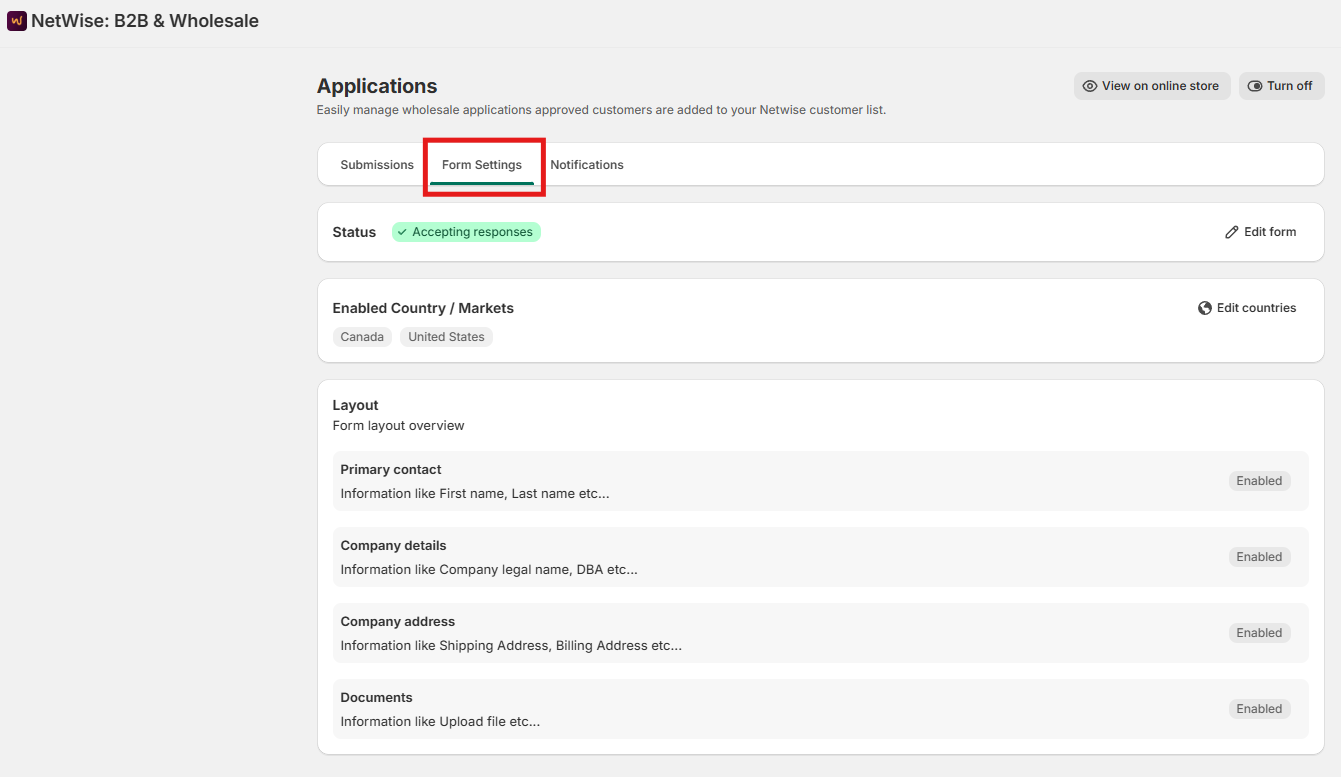
Key points:
Turn the application form on or off from here.
When enabled, the form is live on your storefront and accepting submissions.
When disabled, the form is hidden and no new applications can be submitted.
Use this to turn off applications during busy periods or while making updates.
Enabled Countries / Markets
You can restrict which countries or Shopify markets are allowed to submit applications.
Key points:
Select one or more countries or markets to control who can apply.
Only visitors from enabled locations will see and access the form.
Useful if your B2B program is limited to specific regions.
Leaving this unrestricted allows applications from any location.
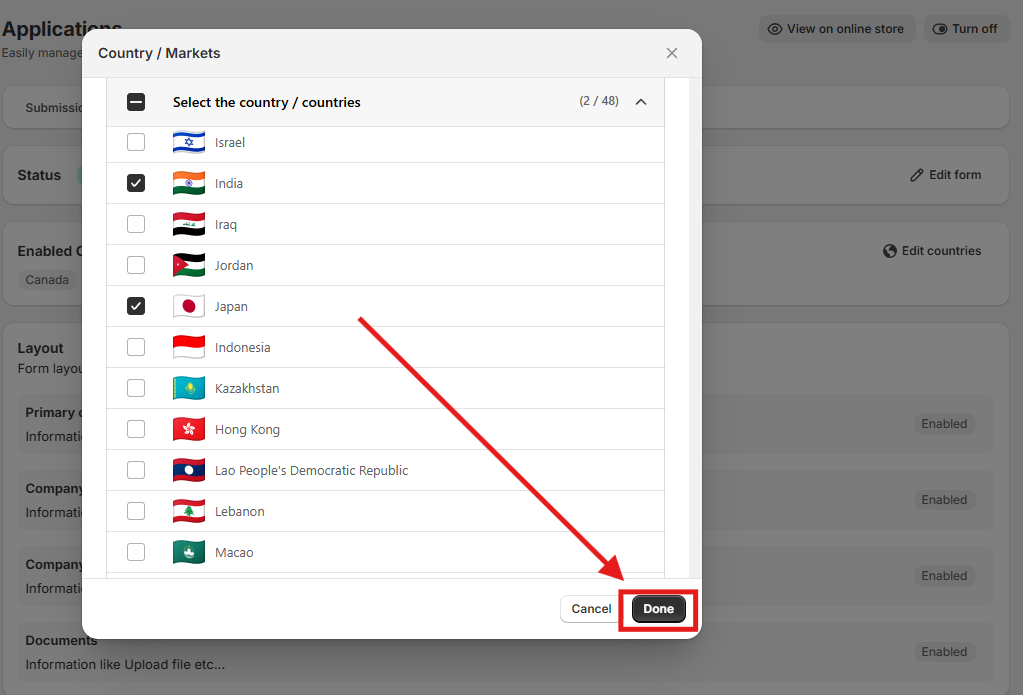
Example: You only run wholesale operations in the US and Canada. Enable only those two markets — visitors from other regions won't be able to access the form.
Form Layout Overview
The application form is divided into four sections. Each section collects different information from the applicant — and every section can be fully customized to match your business needs.
📌 Primary Contact Captures details about the person submitting the application.
Includes: first name, last name, email address, and phone number.
The email entered here is used for approval and rejection notifications.
📌 Company Details Gathers information about the applicant's business.
Includes: company name, business type, tax ID / VAT number, and website.
Helps you evaluate whether the applicant qualifies for a B2B account.
📌 Company Address Captures the physical location of the business.
Includes: street address, city, state/province, postal code, and country.
Useful for verifying legitimacy and setting up shipping or invoicing.
📌 Documents Upload Allows customers to attach supporting files with their application.
Customers can upload a business license, reseller certificate, or tax exemption form.
You can make document upload required or optional.
Uploaded files are stored with the application in Netwise for your review.
Customizing the Form
Every section and field on the form can be tailored to fit your onboarding process.
Field Configuration
Merchants can build any form structure they need. The following field types are supported:
Field Type | Use Case | Example |
|---|---|---|
Single-line text | Short free-text answers | Business name, Tax ID |
Multi-line text | Longer descriptions | Business description |
Number | Numeric values | Annual order volume |
Multiple choice | Select one or more options | Product categories of interest |
Radio buttons | Mutually exclusive choices | Business type |
Dropdown | Structured selection | Industry vertical |
File upload | Document submission | Business license, Tax certificate |
Terms & conditions | Legal acceptance | Agreement to wholesale terms |
Each field can be independently configured as:
Required — prevents form submission if left blank
Optional — displayed but not enforced
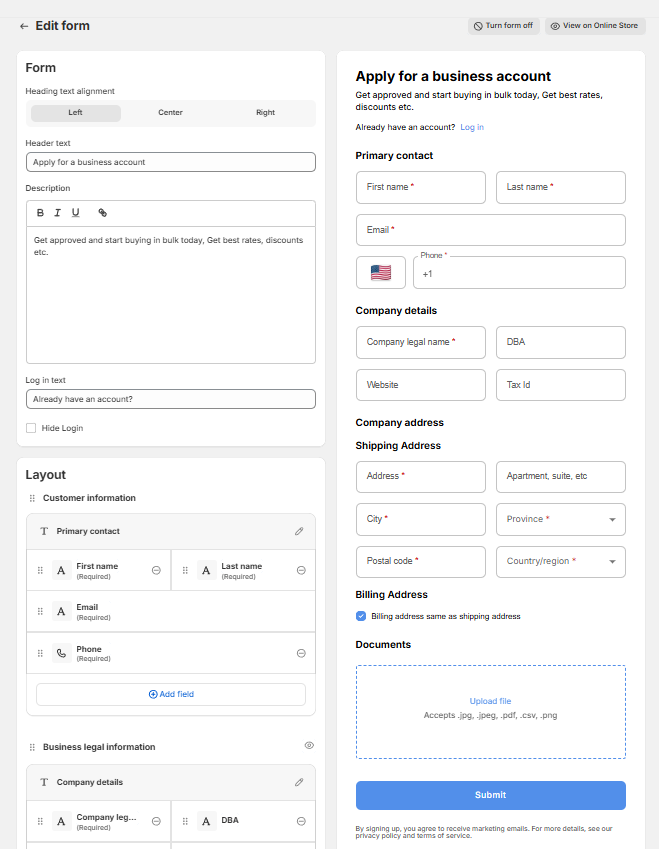
Important constraint: The Email field is the only field that cannot be modified or removed, as it is required for Shopify customer account creation and communication.
Managing Fields
Show or hide individual fields within any section.
Mark fields as required or optional.
Add custom fields if you need information not included by default.
Remove fields that aren't relevant to your process.
Editing Form Content
Update the form title and description shown at the top.
Rename field labels (e.g., change "Company Name" to "Business Name").
Add placeholder text inside fields to guide applicants.
Edit section headings to match your brand's tone.
Applying Custom CSS
Add your own CSS to style the form to match your store's design.
Customize colors, fonts, button styles, and spacing.
Changes apply only to the application form — not your broader storefront.
Tip: If you're not comfortable with CSS, a Shopify developer can help — even small styling changes can make the form feel fully on-brand.