

How to enable Net Terms on your store - NetWise Help Center
How to enable Net Terms on your store
Step 1: Access Your Online Store
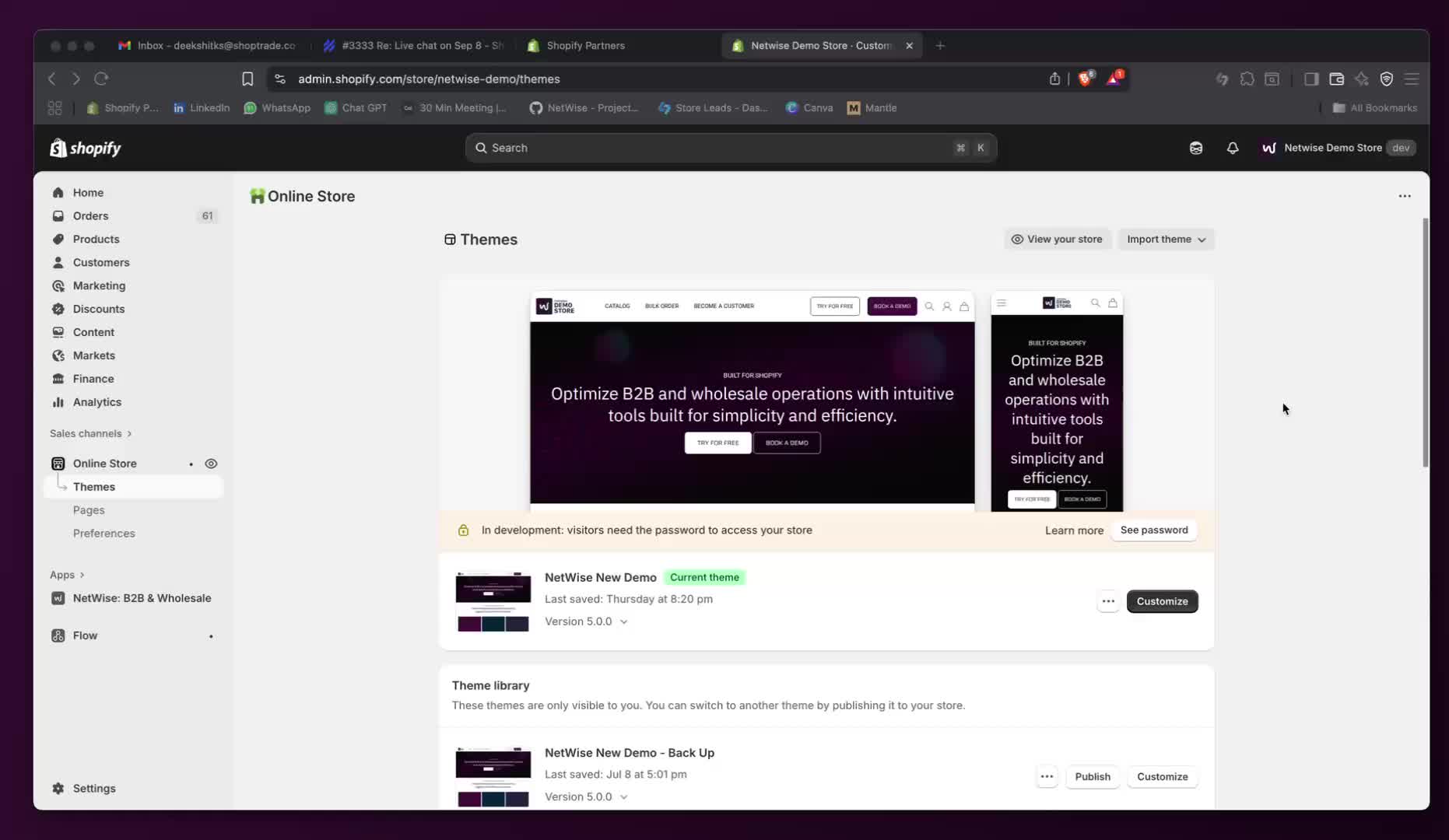
- Go to your store's dashboard.
- Click on 'Online Store'.
- Select 'Customize' on your light theme.
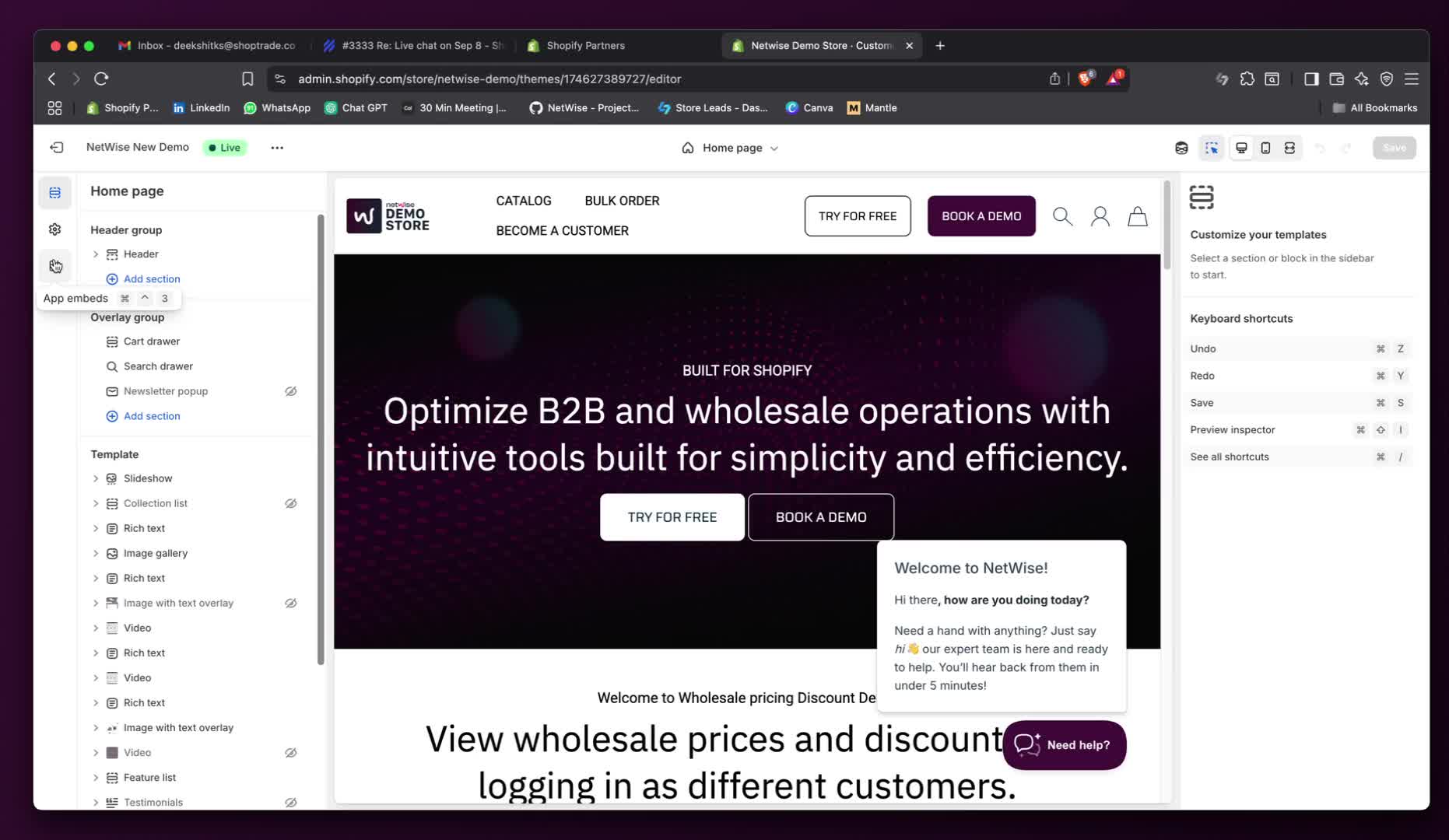
Step 2: Navigate to App Embeds
- In the customization menu, look for three options: Sections, Theme Settings, and Apps.
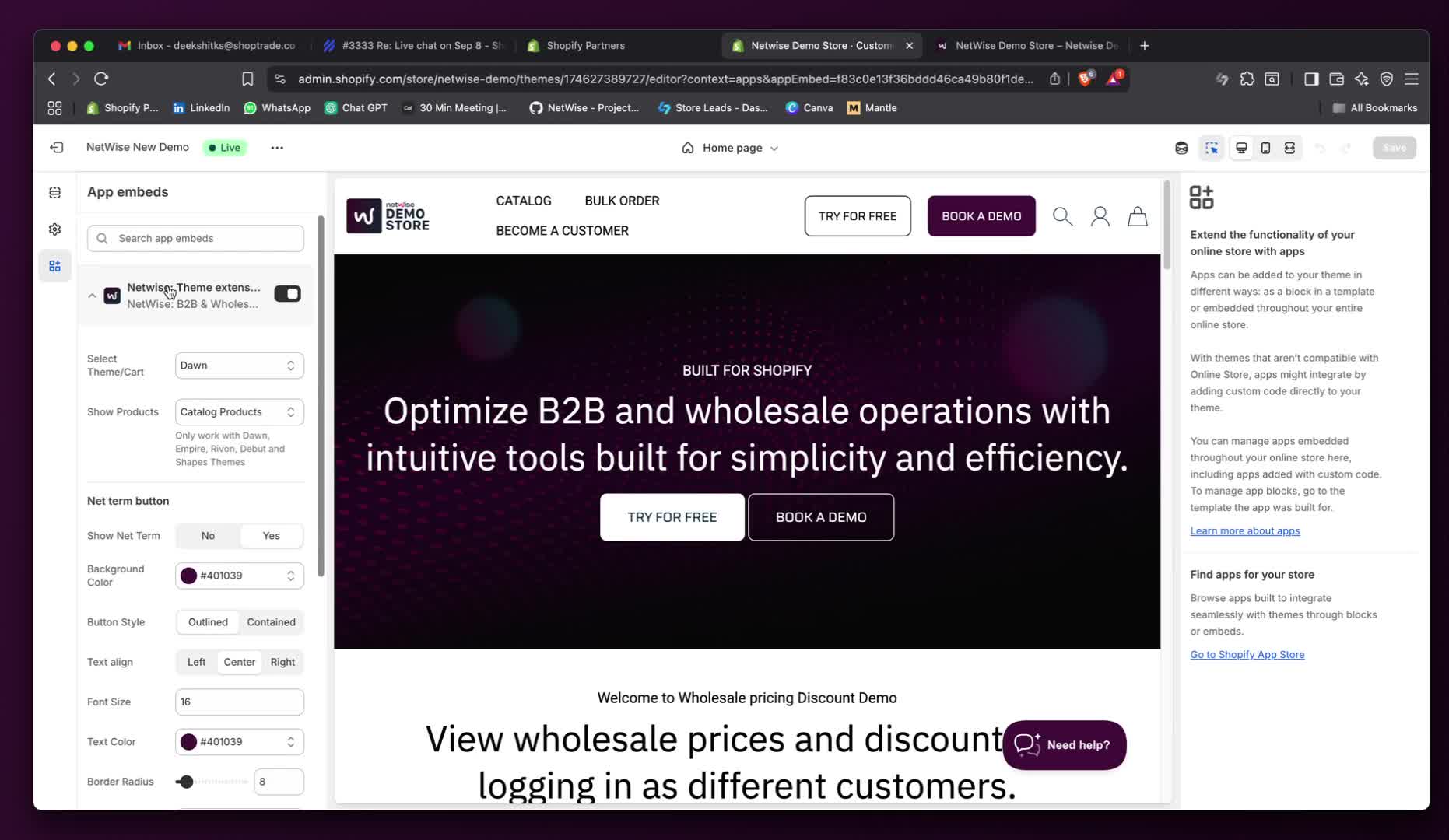
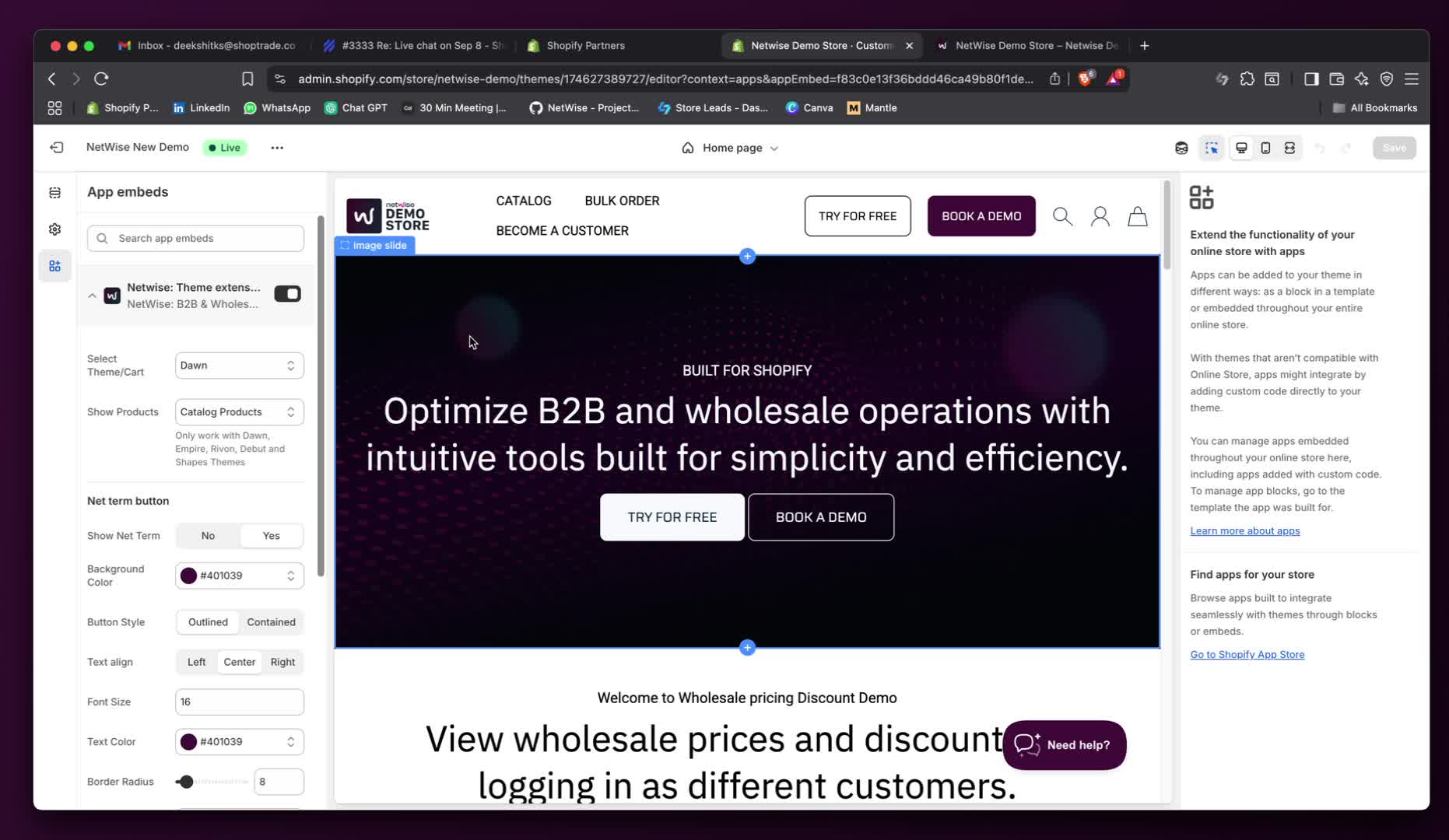
- Click on 'App Embeds'.
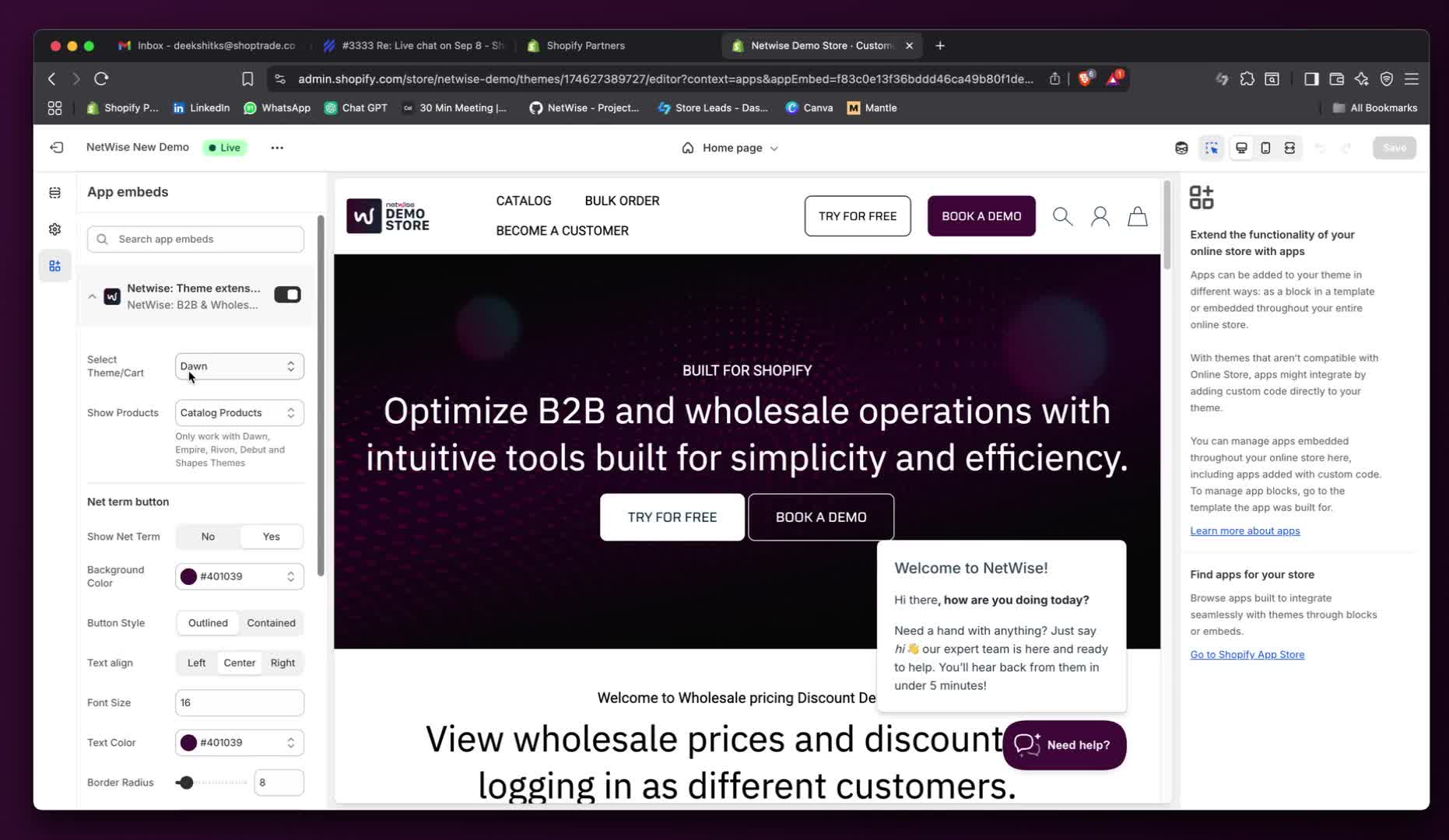
Step 3: Enable Net-Term Extension
- Find the Net-Twice theme extension.
- Ensure it is enabled.
- Click on the arrow to select your theme.
Step 4: Configure Net-Term Settings
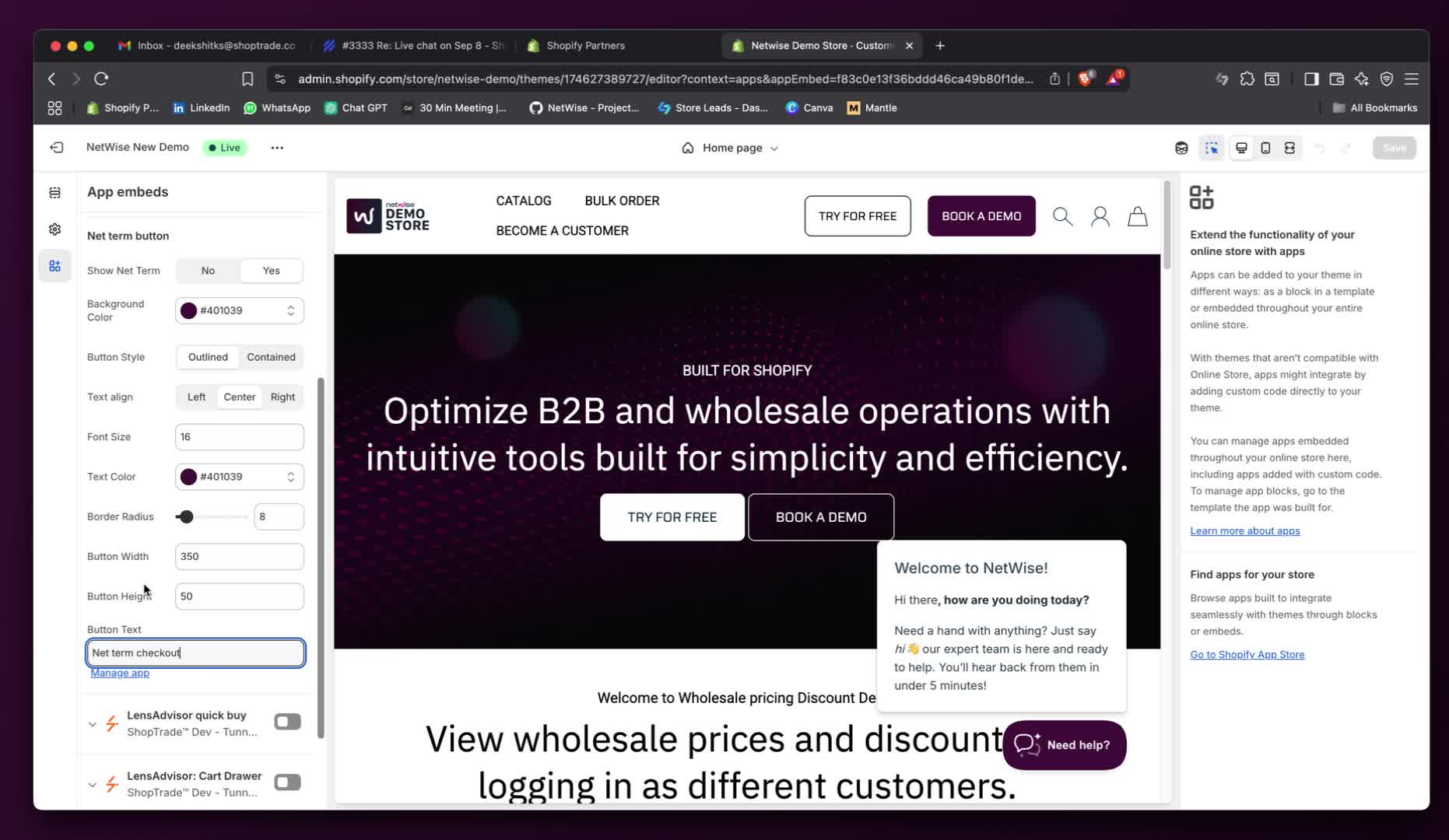
- Enable the Net-Term button by selecting 'Yes'.
- Optionally, set a background color (e.g., white text on a colored background).
- Center the text and adjust the font size as needed.
Step 5: Customize Button Text
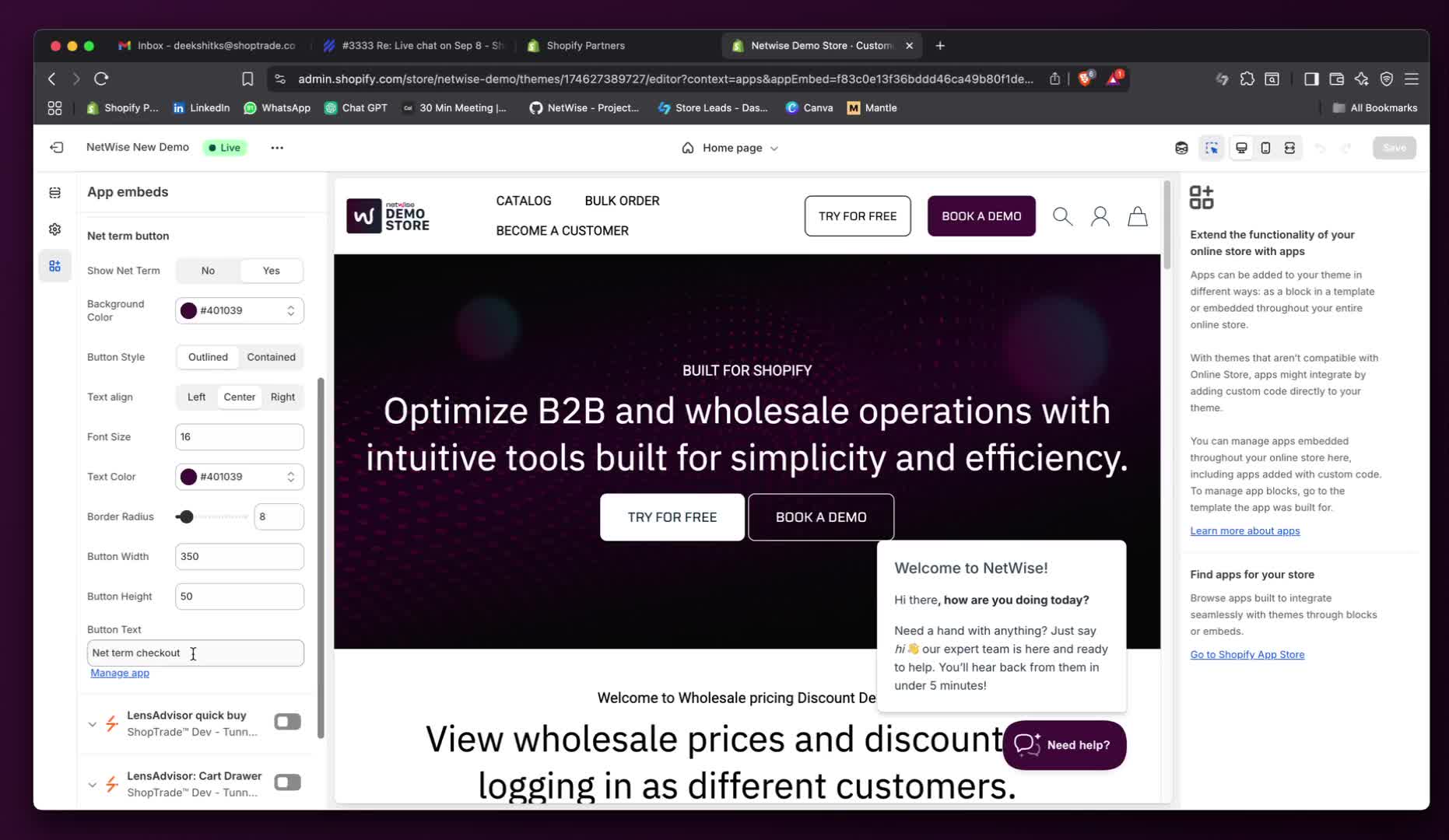
- Choose the button text (e.g., 'Pay Later' or 'Net Term Checkout').
- For the demo, keep it as 'Net Term Checkout'.
Step 6: Manage Customer Settings
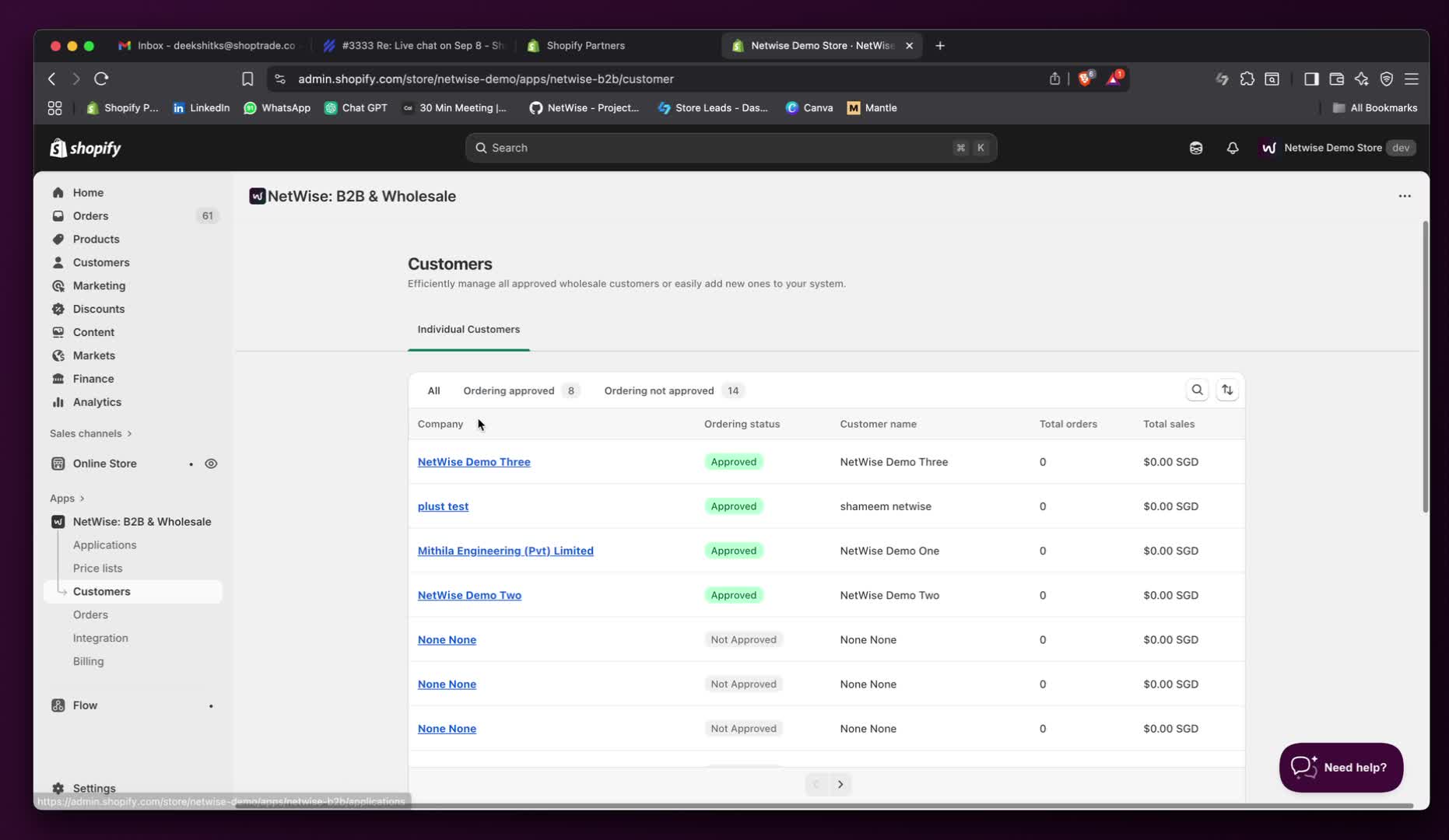
- Go back to the app and navigate to the customer section.
- View all approved customers.
Step 7: Assign Net-Term to Customers
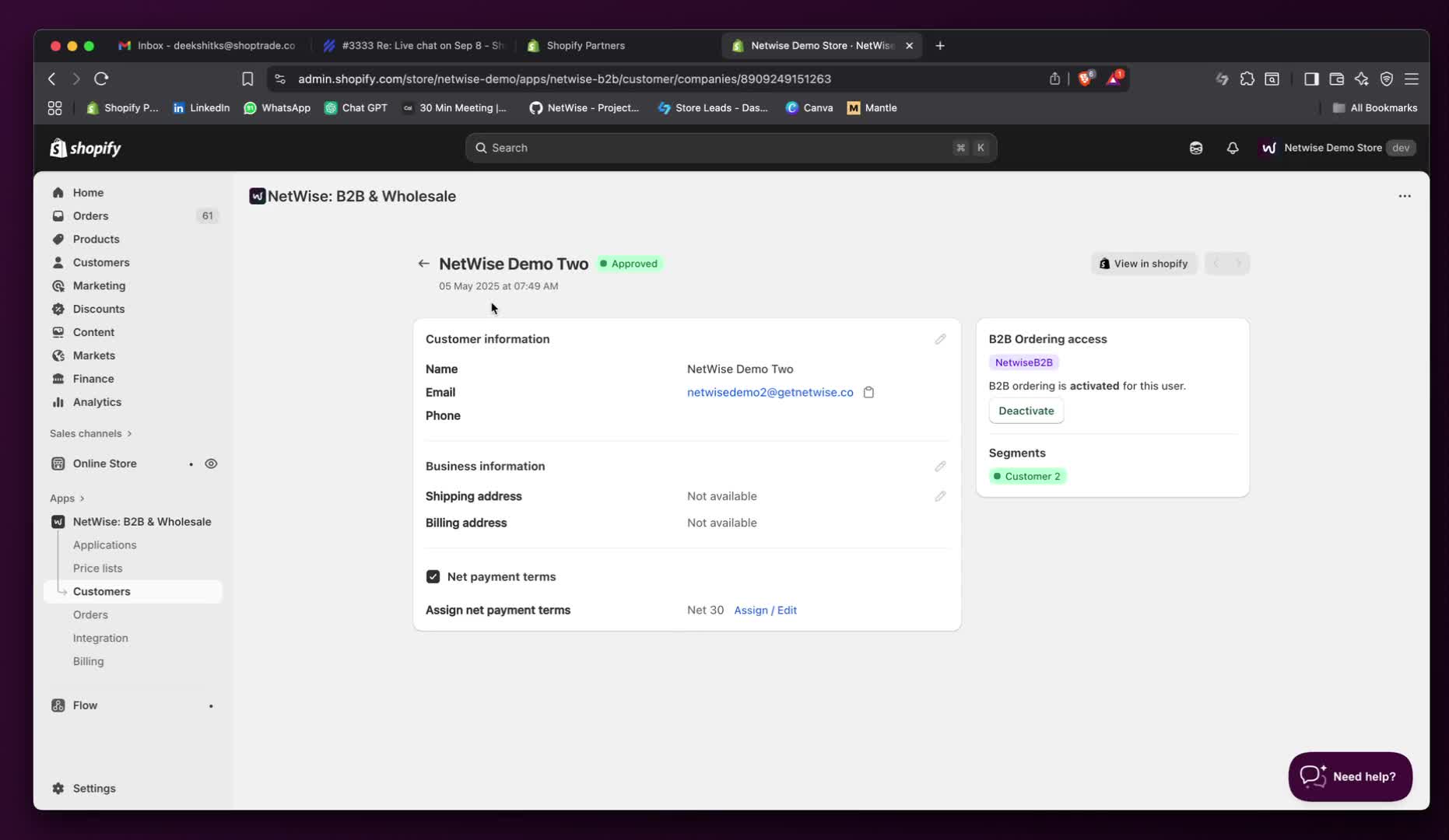
- Select a customer to view their settings.
- You can enable or disable Net-Term for individual customers.
Step 8: Save Changes
- After making adjustments, save your changes.
Step 9: Review Net-Term Visibility
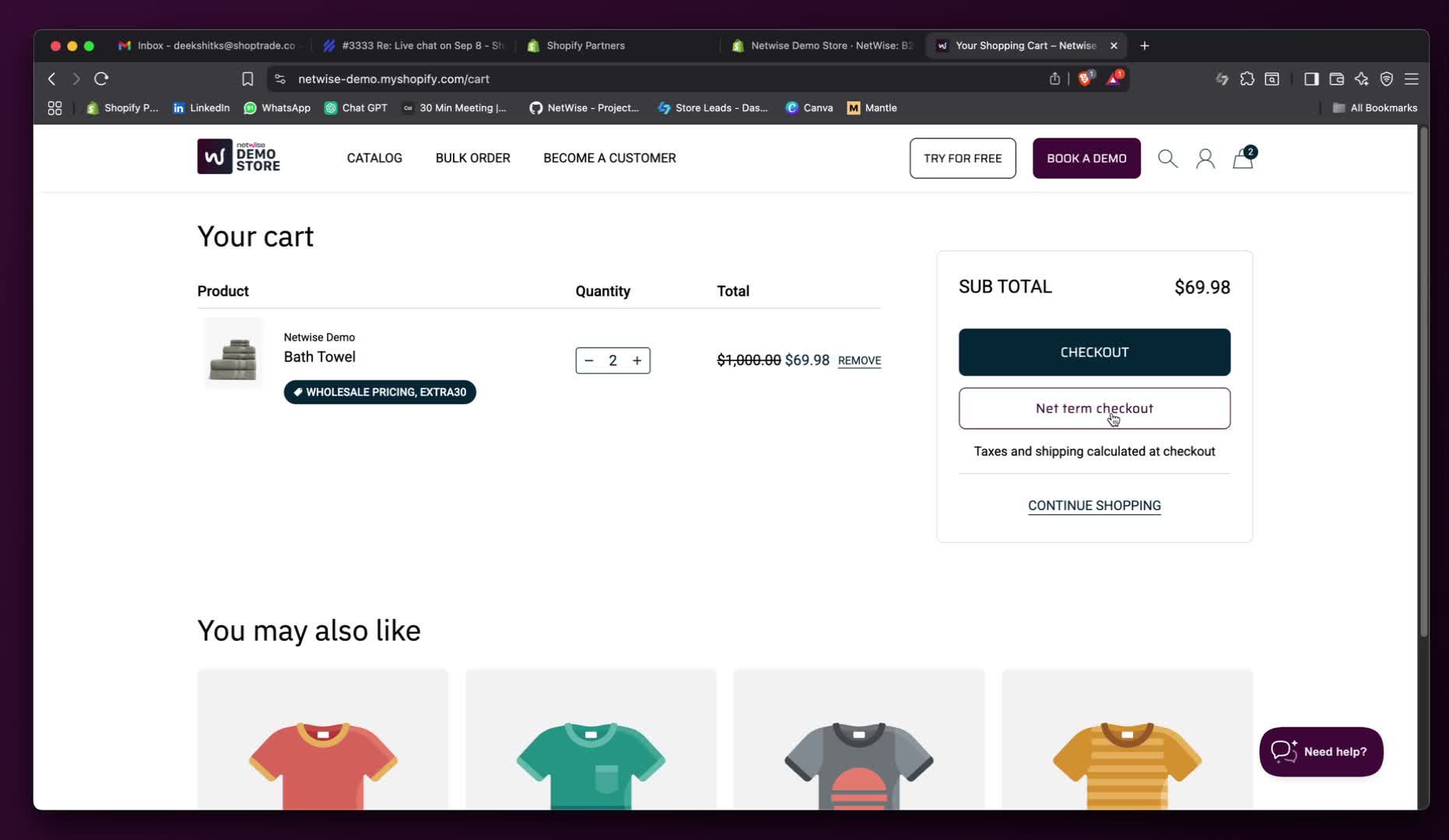
- Net-Term will appear in the drawer cart and cart page.
- It is only visible to customers who are logged in and assigned to Net-Term.
Step 10: Further Customization
- Return to app embeds to make additional adjustments.
- The app automatically adapts to your store's CSS.
Step 11: Disable Net-Term if Needed
- If you do not want to offer Net-Term, set it to 'No'.
Step 12: Contact for Support
- For any questions, reach out via email or the app chat.